
ReactJS is one of the most popular JavaScript libraries for building modern web applications. Moreover, developers prefer React because it helps create fast, reusable, and interactive user interfaces. Although there are many ways to use ReactJS, installing it locally with all required dependencies is considered the best method for long-term projects.
In this tutorial, we will discuss how to install ReactJS on Windows with ES6 step by step. Furthermore, we will also install Webpack, Babel, and other important packages required for React development. As a result, you will get a complete ReactJS development environment instead of depending on CDN files.
How to install ReactJS on Windows With ES6:
(You should have already installed Node.js for Windows. If you don't have, download from https://nodejs.org/en/download/ )
1- Choose a directory (simply press Shift Key and Right click on the mouse, you will get terminal)
Enter below command:
mkdir foldername
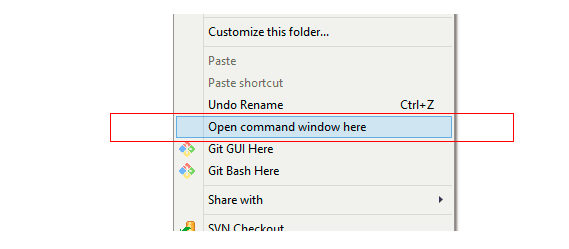
You can also go through this article to add command option quick shortcut: How to add Open command window here option to right click
Let's move on the tutorial, I'm here using app name is react-tut, you can also choose your name.
Next, select the recently created app folder using the command below:
cd react-tut
2- Please note Node should installed on your machine after that you need to proceed below step, using below command initiate your first ReactJs application.
npm init --yes
3- Now run command to install ReactJs and save details on JSON :
npm install --save-dev react react-dom
4- After the successful installation of ReactJS on Windows, you also need to install some additional packages.
(Webpack) : Helps you to real-time update for CSS and JS file. Webpack uses async Input/Output and has multiple types of cache levels. This makes webpack fast and incredibly on the compilation.
npm install -g webpack
(Babel) : Babel has support for the latest version of a JavaScript pattern through syntax transformers. The package manages culturally-determined typographical (and other) rules, and hyphenation patterns for a wide range of languages.
npm install --save-dev babel babel-core babel-loader
and
npm install --save-dev babel-preset-es2015 babel-preset-react
Where --save-dev is used to save the package for development purpose and --save is used to save the package required for the application to run (you can use accordingly)
5- Install WebPack locally for peer dependencies:
Peer Dependencies: When Node Package Manager sees that your package is being installed into React app not have that dependency, or that has an unsupported version of it, it will display warning the user during the installation.
npm install -save-dev webpack
Webpack dev server (configuration):
npm install --save-dev webpack-dev-server react-hot-loader
6- Creating an example directory of your project:
mkdir example
7- Move into recently created example directory:
cd example
8- Create webpack server configuration:
notepad webpack.config.js
9- Open webpack.config.js and copy code from my GitHub repo:
https://gist.github.com/himstar/898e1a7fd92922cdf82254980817c65f (Sometimes apostrophes and hyphens get replaced if UTF version is different)
You can also copy from below code section but highly recommended to take config data from above URL (Sometimes apostrophes and hyphens get replaced if UTF version is different)
var webpack = require("webpack");
module.exports = {
 entry: {
 "react-reading-time": [
 "webpack-dev-server/client?http://localhost:8881/",
 "webpack/hot/only-dev-server",
 "./example/react-reading-time.jsx"
 ] },
 output: {
 path: __dirname,
 filename: "[name].js",
 publicPath: "http://localhost:8881/",
 chunkFilename: "[id].chunk.js",
 sourceMapFilename: "[name].map"
 },
 resolve: {
 extensions: ["", ".js", ".jsx", ".es6"],
 modulesDirectories: ["node_modules"]
 },
 module: {
 loaders: [
 {
 test: /\.jsx$|\.es6$|\.js$/,
 loader: "babel",
 query:
 {
 presets:["es2015", "react"]
 },
 exclude: /node_module/},
 { test: /\.scss$|\.css$/, loader: "style-loader!style!css!sass" }
 ]
 },
 plugins:
 [
 new webpack.NoErrorsPlugin()
 ],
 devtool: "eval-source-map"
};
10- Go to root directory of your project and open package.json file:
Add below Object under scripts:
"start": "webpack-dev-server --config ./example/webpack.config.js --hot --port 8881"
(./example/webpack.config.js is a config file path under project folder example)
Ex-
"scripts": {

"start": "webpack-dev-server --config ./example/webpack.config.js --hot --port 8881",
"test": "echo \"Error: no test specified\" && exit 1"

},
11- Start NPM (node package manager) using below command to execute your ReactJs application:
npm start
12- Create an index HTML file in directory example index.html as below:
<html lang="en">
<head>
<title>My First React Example</title>
<link href="https://maxcdn.bootstrapcdn.com/bootstrap/3.3.7/css/bootstrap.min.css" rel="stylesheet">
</head>
<body>
<div class="container">
<div id="react"> Hello !!</div>
</div>
<script src="/react-reading-time.js"></script>
</body>
</html>
13- Create a source directory 'src' inside example folder to add extra files such as images, CSS:
mkdir src
14- Create Babel module for ES6 (we already discussed babel):
notepad .babelrc
15- Open .babelrc paste lines and save:
{
presets: ['es2015', 'react']
}
16- Now you need to start NPM again using the command:
npm start
17- May you get some console errors, ignore till now (we will discuss on later). Open your browser and enter your first ReactJS app URL as below:
http://localhost:8881/example/
(Your test webpage up and running well !!)

If you stacked into something wrong then no need to worry, give a try with pre-coded complete setup file, download from my GitHub profile:
*npm required
I tried to make this tutorial clear as I can, also we discussed almost all important point related to install ReactJS on windows, feel free to share your suggestions or ask a question.
Thanks for reading



31 comments: On How to install ReactJS on windows with ES6 way
hi
i am facing the issue while installing the webpack
D:\Project-works\myReact>npm install -g webpack
npm ERR! Unexpected end of JSON input while parsing near '...0.0.tgz"},"engines":{'
npm ERR! A complete log of this run can be found in:
npm ERR! C:\Users\ELCOT\AppData\Roaming\npm-cache\_logs\2018-06-05T09_39_34_391Z-debug.log
This might helps you: https://github.com/yeoman/yo/issues/168
Where i have to write the react js code.
Just like other editors, you can choose ATOM, Visual Studio Code etc.
Thanks to all
Good tutorial for beginners. Thank You.
Your welocme 🙂
Nice tutorial, thanks
It's uncommon, try in Administrator mode or let me know if still facing the same issue.
Email: himstar@himstar.info
Hey thanks for tutorial, but there aren't any package.json in the root folder of my project or any projects..maybe there was an assumption made?
you should use
npm initto createpackage.json, and--savecommand to save record in JSON:Ex-
npm install -save-dev webpackI followed your article. but in the end, I could load : localhost:8881/example in my browser.
I think I must have messed something up in step 10. Please, can you give me a very detail instruction or steps on what to do and solve this problem?
Thanks
npm server not started, you have to check node server once.
I followed your article I got the error message at step 11 while npm start
npm ERR! Unexpected string in JSON at position 192 while parsing '{
npm ERR! "name": "hasura",
npm ERR! "version": "1.0.'
npm ERR! File: C:\Users\Fayaz\hasura\package.json
npm ERR! Failed to parse package.json data.
What should I do to resolve this error?
Thank You
Sometimes 'Apostrophes and hyphens get replaced', please check once.
Could you please try once with GitHub file (download available above)
I followed but im getting an error at the last stage...
ERROR in multi react-tut
Module not found: Error: Cannot resolve 'file' or 'directory' ./example/react-reading-time.jsx in C:\Users\Rohit\Desktop\react-tut
You missed WebPack dependencies.
Module not found: Error: Can't resolve './example/react-reading-time.jsx' in 'E:\reactproject'
@ multi react-reading-time
webpack: Failed to compile.
how to resolve this
I got the error message
"echo \"Error: no test specified\" && exit 1
when I tried to run the npm init --yes
Because npm server not started, you have to check node server once.
I followed but im getting an error at the last stage...
Just drop me an email at himstar@himstar.info
i followed all the steps but it didn't work.
What problem are you facing?
You can drop your message on hangout too.
nice tuts.
Thanks 🙂
Good himanshu, keep it up
Thanks
Rock, awesome article!
Thank you 🙂
still facing same issue.. please let me know what needs to be done.
behind TricksWay
very affordable cost.
mail on info@tricksway.com
like us on facebook.
Sliding Sidebar
We are India’s largest Startup Community
We are team of ' Delhi Startups ' , most active startup community with strict spam policy.
We are making !deas happen..for future, business and jobs without charging anything, with connecting entrepreneurs.. It's a reason to trust on us.
Come and join or subscribe, we will defiantly give a reason to like us.
Our Facebook Page